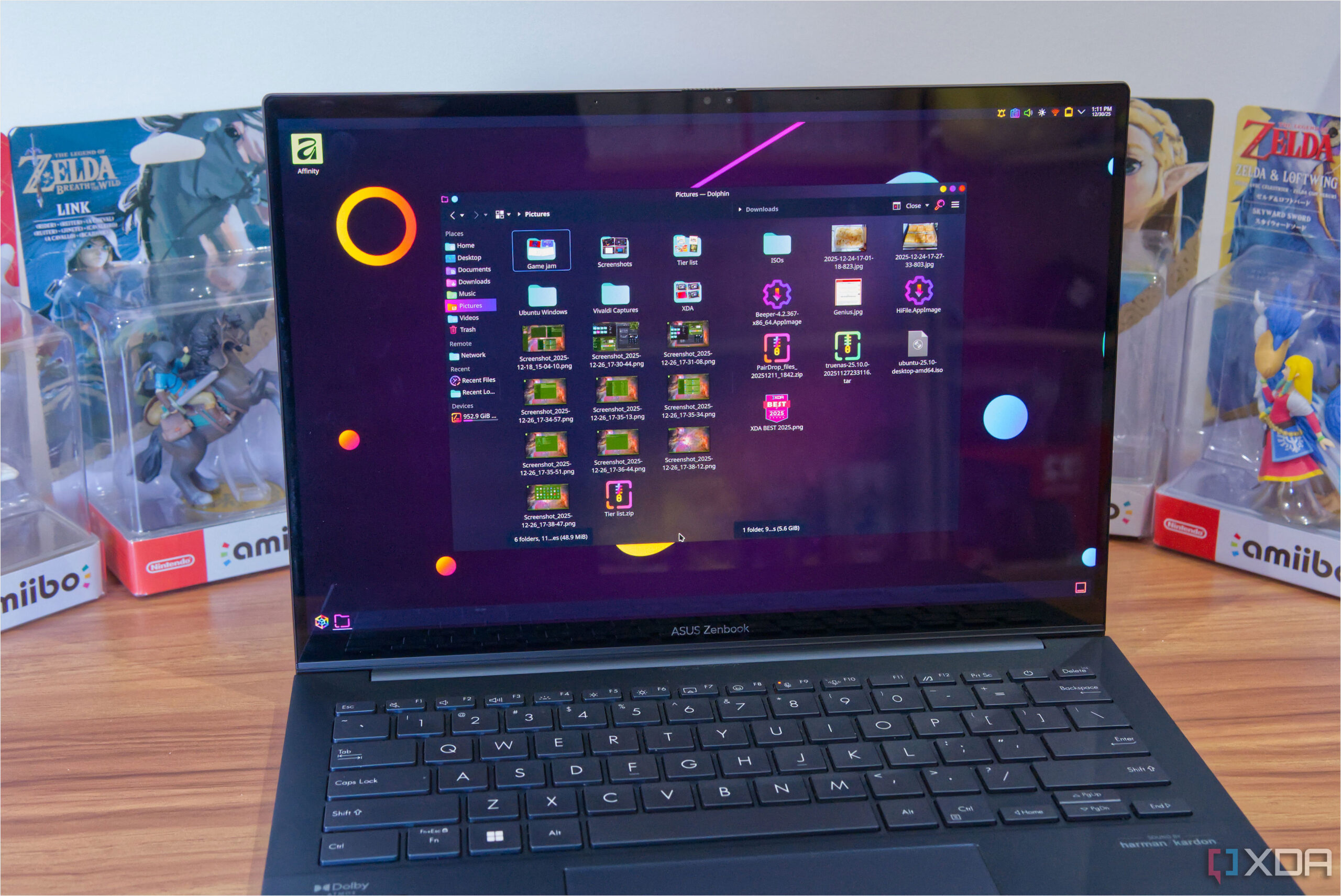
I still remember the first time I downloaded an AppImage on my PC. It was back when I was giving Linux Mint a try after decades of being a Windows fanboy, and I had downloaded the AppImage of an app I wanted to use. It was a weird little file; I was used to app executables to come with an icon, but this one was bare.
Of course, coming from Windows and only understanding what installers were, I tried double-clicking it, to which Linux told me that the file wasn’t allowed to run. And thus began my adventures into using AppImages, which started as a “Why on Earth would I ever use these?” experiment and ended up with a realisation that, actually, AppImages are pretty awesome.
At first, AppImages were an utter enigma to me
I had no idea why they even existed
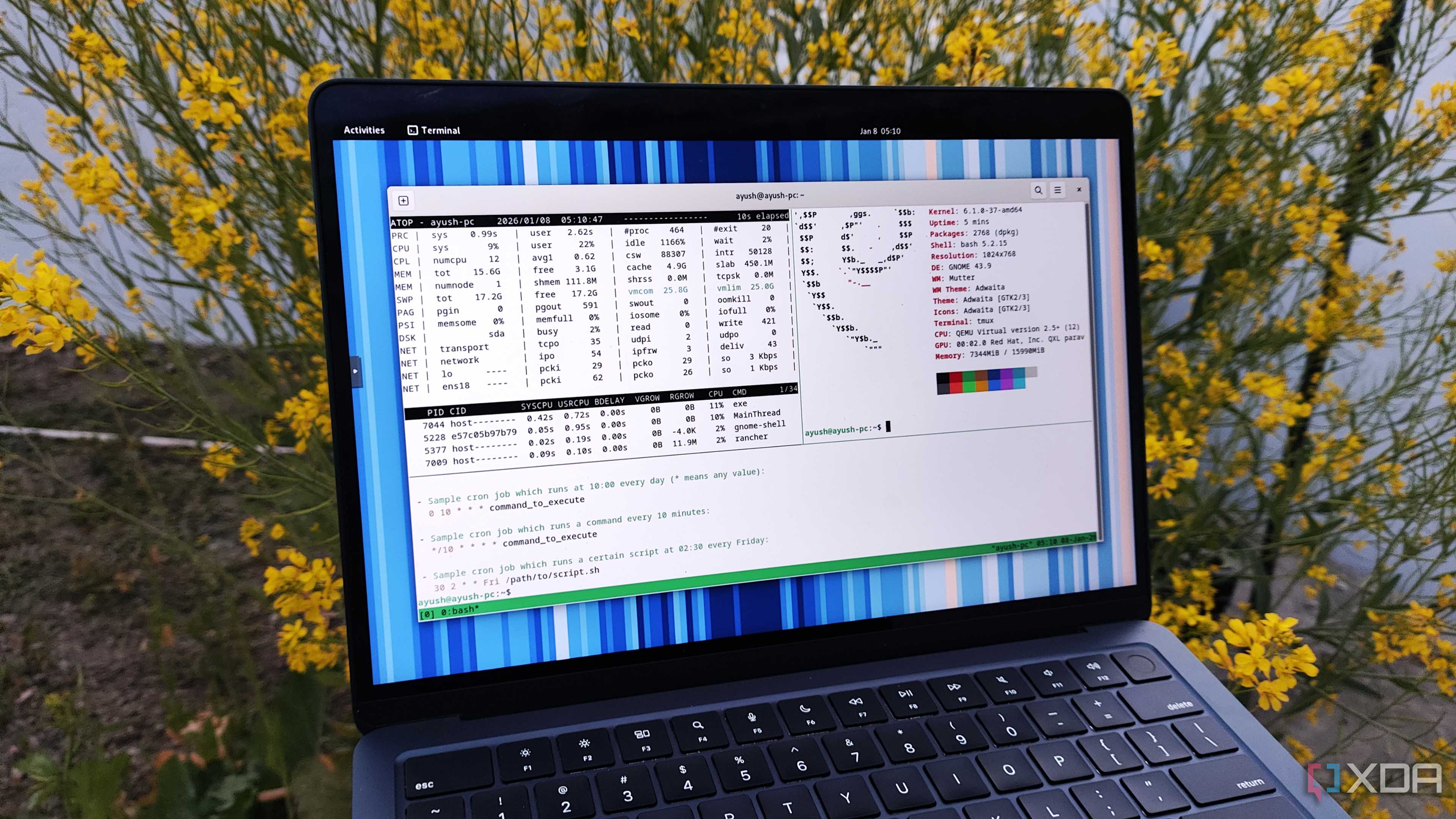
You have to understand that, coming from Windows, I’m used to things working when you double-click them. Want an app? Download its installer and then double-click it. Click through the windows, set the install directory, accidentally click “Next” on the page asking if you’d like to install other, unwanted apps with your install, and then wait for it to work. So, you can see why, in my Windows-coded brain, I was met with confusion when double-clicking the AppImage did nothing.
RECOMMENDED FOR YOU
Well, okay, it didn’t do ‘nothing.’ It did show an error message telling me that the AppImage wasn’t an executable, so it wasn’t allowed to run. A quick Google later, and I discovered that I had to manually go into the AppImage’s properties, check the box that sets it as an executable, and then double-click it to run it.
I put the AppImage on my desktop. I would then find more AppImages and put them on my desktop, too. And there they sat, with no icons, like a desktop shortcut, but far. far blander. And I really hated them. Eventually, I’d figure out how to use repositories and convert DEB files to RPM, so I took those routes and erased the ugly AppImages off my PC. And thus, I deemed them a useless, ugly thing that had no place on my PC.
However, things changed when I moved to an immutable system
Installing things became a no-no
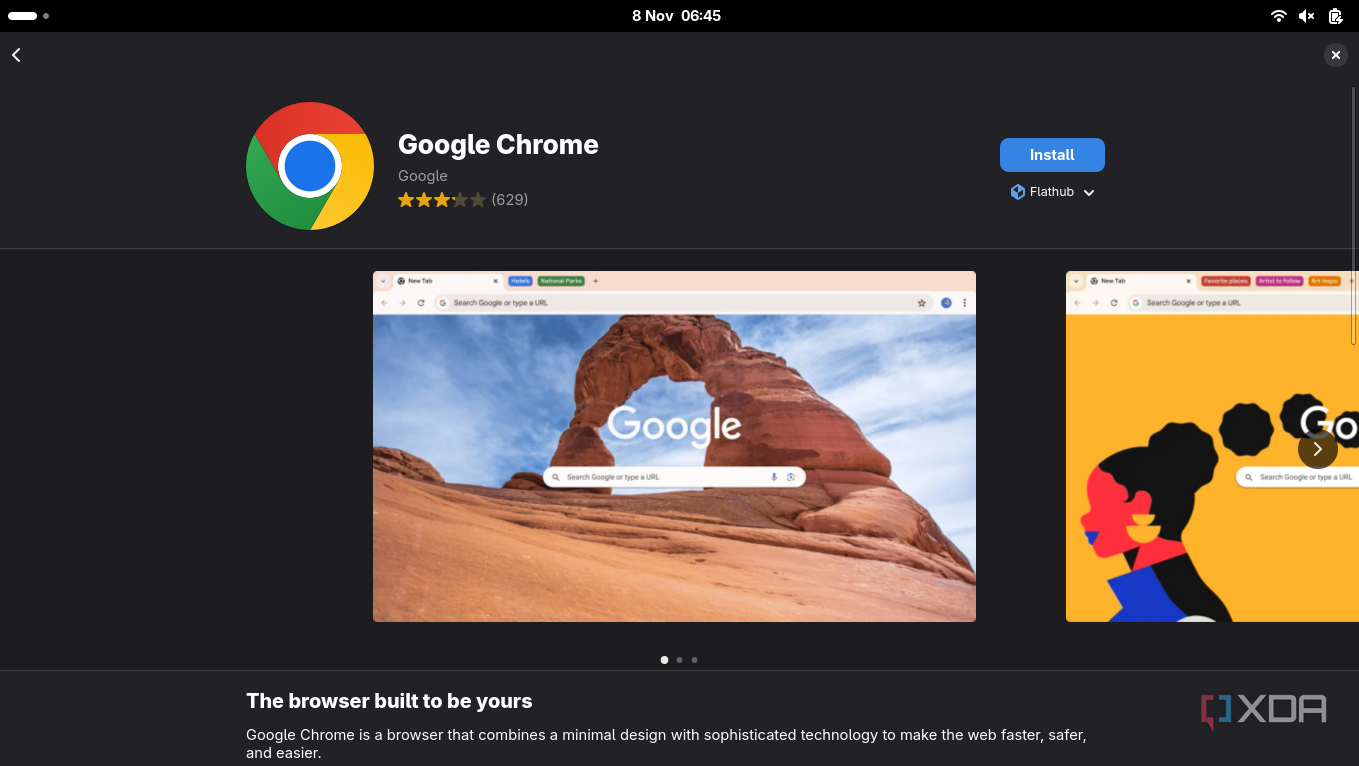
My attitude toward AppImages would change once I got into Fedora Silverblue, and, eventually, Fedora Kinoite. These operating systems are immutable, meaning that apps do not have permission to edit the system files. This means you can’t install apps the same way you would with a Windows installer; you have to take other routes.
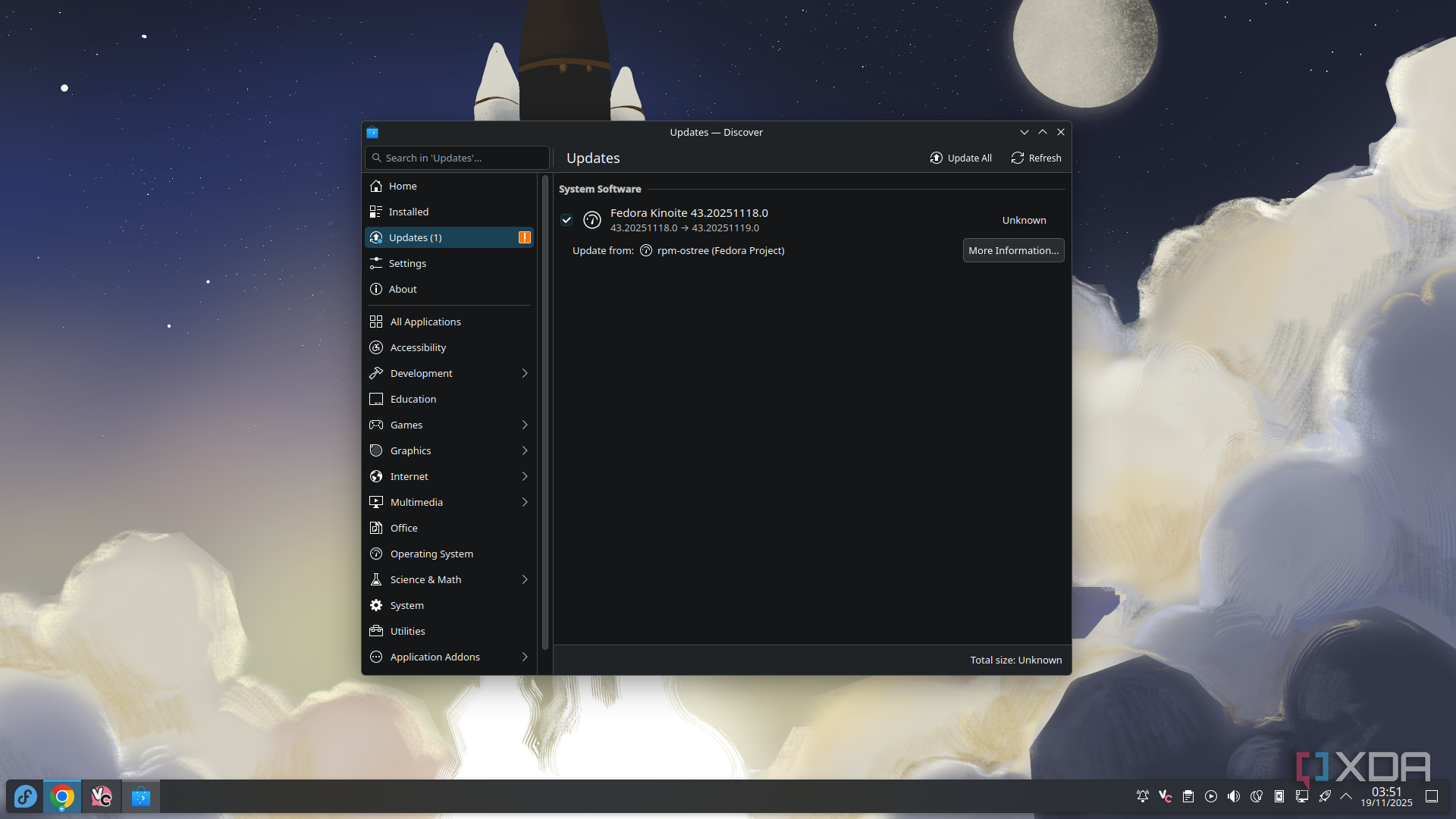
My mainstay was the Discover store, where I could download and run apps that didn’t modify the system. They ran in their own little sandbox and had their dependencies bundled in, so they were a shoo-in. However, my old habits of installing apps via repositories or via DEB conversion no longer worked here, so I had to venture into the world of AppImages once more.
After some Googling about “how to install an AppImage,” I learned that an AppImage is, essentially, an entire app in one file. This means that, tucked away within that bland packaging was all the details I needed to set up my own desktop entry, including an icon. So, I learned how to extract the contents of an AppImage, found the icons for my programs, and manually set everything up so they looked pretty.
Now I was realising what an AppImage was; it’s essentially just an executable file on Windows. If you ever downloaded an EXE that doesn’t need installing, or you grabbed a ‘portable’ version of an app, that’s what AppImages are, basically. And once that clicked, I found a new respect for the humble AppImage.
My attitude toward AppImages peaked when someone told me about Gear Lever
The cherry on the cake
In one of my past articles, I discussed AppImages and how they helped me in my immutable voyage. Someone in the comments told me about the Gear Lever app, and suddenly, AppImages got a ton easier to manage.
If you’re coming to Linux from Windows, Gear Lever is the app that will give your Microsoft-trained brain the same “feeling” of running an installer. You download the AppImage, feed it into Gear Lever, and it will “install” the app. What it actually does behind the scenes is move the AppImage to a safe location, grab the name and icon from the archive, then set up a desktop entry for it. But it feels like it has been installed on your system like a Windows app.
Now I think I prefer AppImages over installing apps the mutable way. Because there are no forced updates, I can control what version my apps are at. I can download a fresh AppImage if I want to update it, and if an update breaks my stuff, I can just delete the new file and go back to the old one. I can even keep a mini library of AppImage versions if I want to.
AppImages are just EXEs for Linux, and that’s why I love them
Hopefully, if you’re thinking of trying Linux as a Windows user, you learn from my mistake and put some respect on the humble name of the AppImage. They may seem weird at first, but with a little tinkering and with Gear Lever, you can take control over your apps like never before.
Finished reading? There’s more to explore.
Leave a Reply